
Appearance
Logging in
The admin console lives in your browser at admin.contentscapture.com. There is nothing to install and nothing to download.
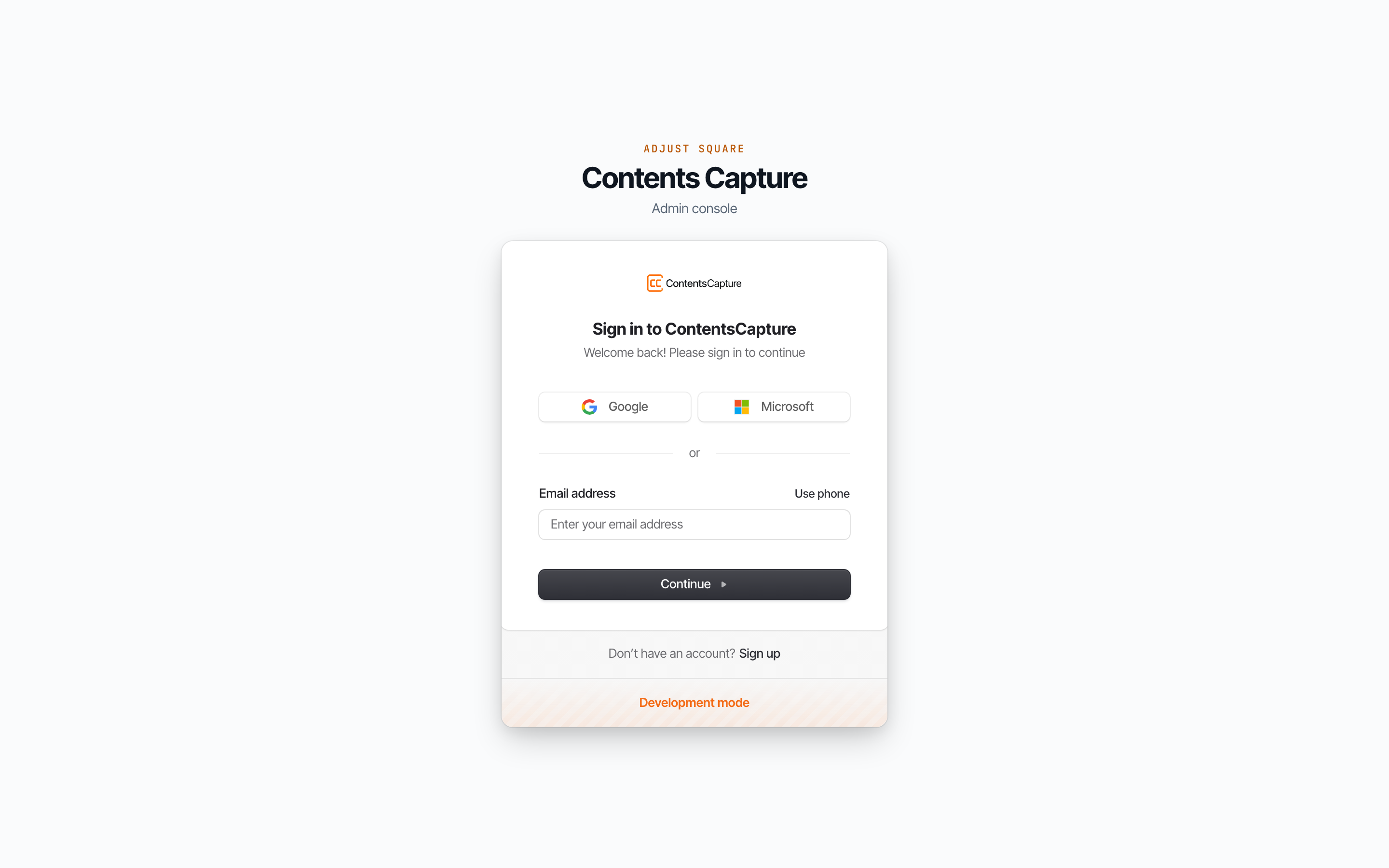
Ways to sign in
You have three, and they all lead to the same place. Use whichever your company has set up.
| Method | How it works |
|---|---|
| One click. Use this if your company email runs on Google Workspace. | |
| Microsoft | One click. Use this if your company runs on Microsoft 365. |
| Email or phone | Enter your address or mobile number and we send you a short code to type in. |
TIP
There is no password to remember with the email or phone method. Each code works once and then expires, which is why we prefer it.
Signing in with email
Type your work email address into the box and choose Continue.
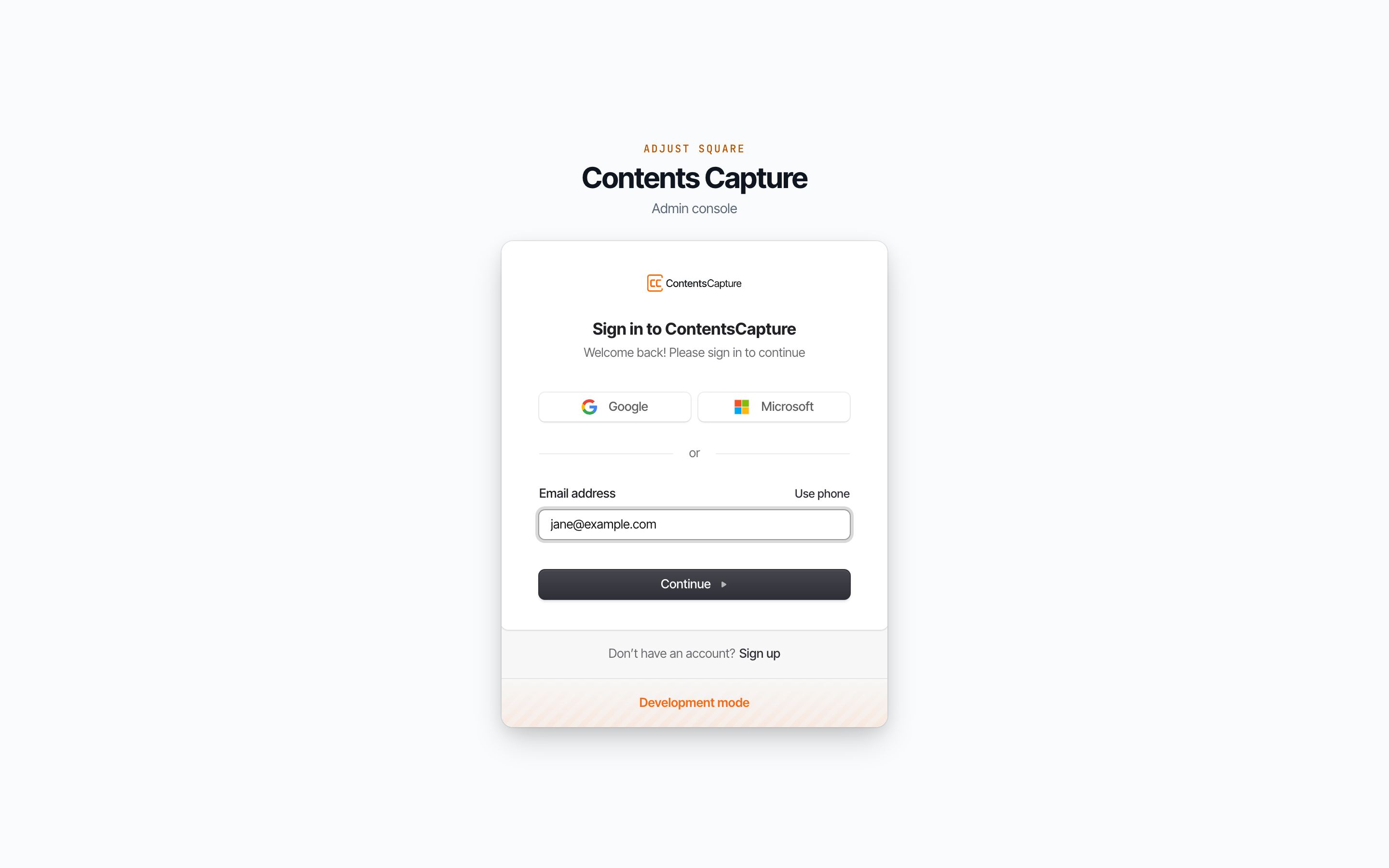
Check your inbox for a short numeric code and type it into the boxes that appear. Nothing else is asked of you, and there is no password to set.
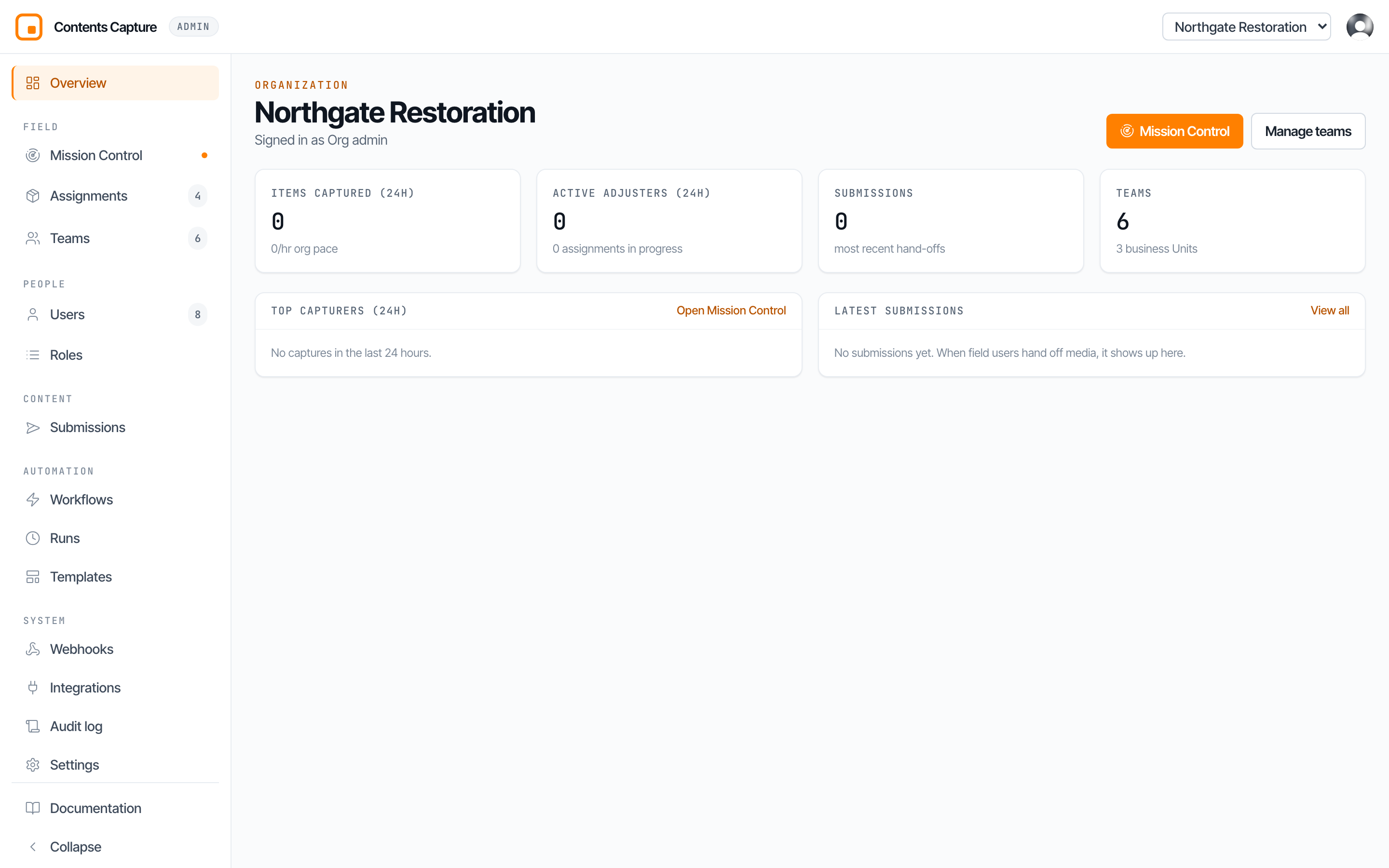
You land on the Overview page, which is the home of the console.
Signing in with your phone instead
Choose Use phone on the sign in screen and enter your mobile number, starting with your country code, so +14155550123 rather than 415 555 0123. The code arrives by text message.
This is the better option for people who live in the field app and rarely open email on a laptop.
Choosing which organization you are looking at
Everything in the console belongs to one organization. Your current organization is shown in the top bar.

If you have access to more than one, the top bar becomes a dropdown. Pick the one you want and the whole console switches to it. If you only have access to one, its name is simply displayed.
When something is not right
"No organization" in the top bar
Your login worked, but your account has not been added to any organization yet, so there is nothing for the console to show you. This is not a password problem and signing in again will not fix it. Ask an org admin at your company to add you. See Inviting another admin.
The code never arrives. Check your spam folder first. If you are using phone, confirm the number includes the country code. Codes expire after a few minutes, so if you have been away from your desk, request a fresh one.
You are sent back to the sign in screen straight away. Your session has expired. Sign in again. Sessions are deliberately short lived because the console can reach real claim data.
"Development mode" appears at the bottom of the card. You are on the practice copy of the system rather than the real one. Check the web address in your browser.
Signing out
Open the menu under your name in the top bar and choose Sign out. Always do this on a shared or borrowed computer.
Next: Access levels, which explains what you can and cannot do once you are in.