
Appearance
Access levels
Everyone in Contents Capture holds a role. Your role decides which buttons you see and which the system refuses to let you press.
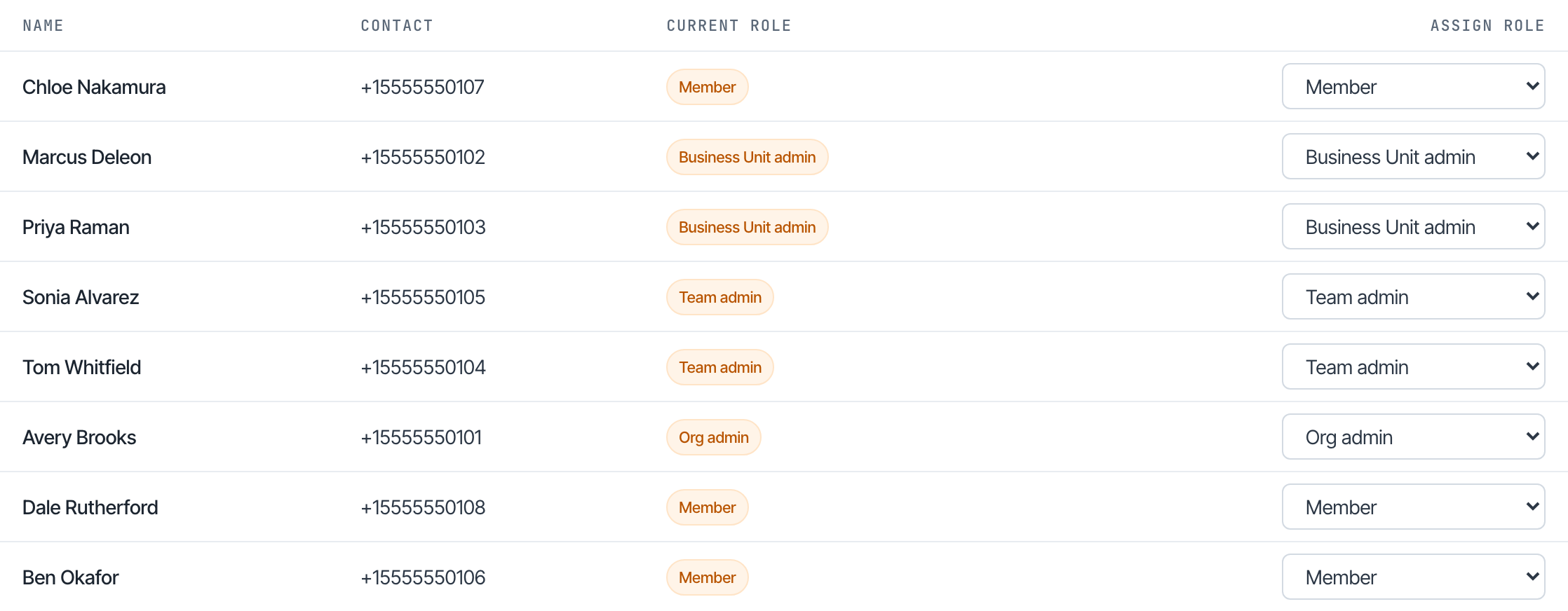
You can see every role and who holds it under Roles in the left menu.
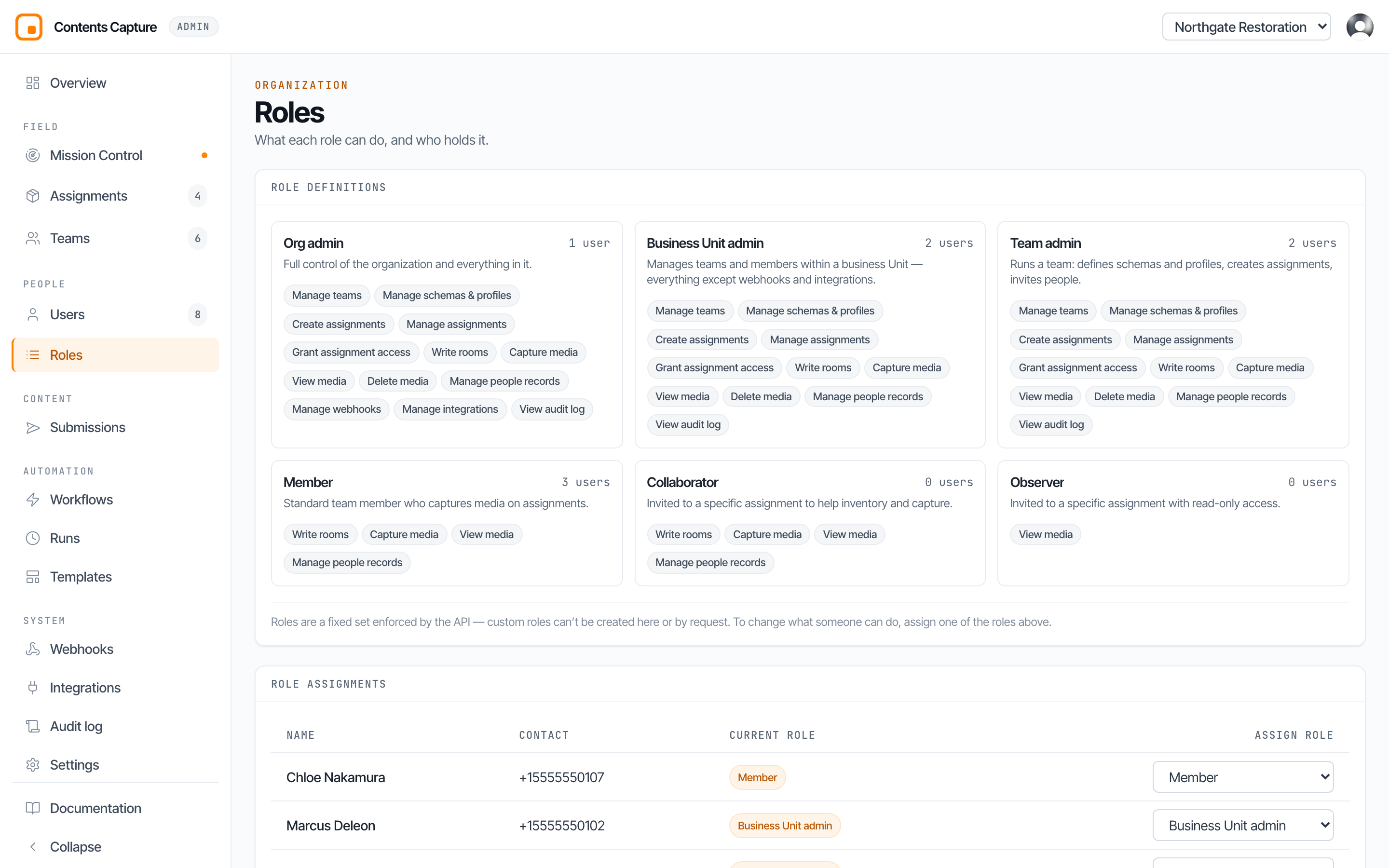
The six roles
There are exactly six. You cannot invent new ones, which is deliberate: it keeps the rules predictable and auditable.
| Role | Who it is for |
|---|---|
| Org admin | Runs the whole company account. |
| Business unit admin | Runs one division or region. |
| Team admin | Runs one team, day to day. |
| Member | Captures in the field. |
| Collaborator | A guest helping on one single assignment. |
| Observer | A guest who may look at one single assignment, and nothing else. |
The idea that makes it all click
Most people expect the roles to be a simple ladder where each rung can do more than the one below. That is not quite how it works, and understanding the real shape saves a lot of confusion.
A role is really two things at once:
- What you can do. Create assignments, delete media, manage webhooks.
- Where you can do it. The whole company, one division, one team, or one single assignment.
Here is the part that surprises people: a business unit admin and a team admin can do exactly the same things. Their list of abilities is identical, right down to the last item. What separates them is only the second question. The business unit admin does those things across every team in their division. The team admin does them in one team.
The same is true further down. A collaborator can do exactly what a member can. The only difference is that a member does it across their team's work, while a collaborator can only ever touch the one assignment they were invited to.
TIP
So when you are deciding what to give somebody, ask how wide before you ask how powerful. Width is usually the answer you actually care about.
What each role can do
| Ability | Org admin | BU admin | Team admin | Member | Collaborator | Observer |
|---|---|---|---|---|---|---|
| Manage teams | Yes | Yes | Yes | No | No | No |
| Manage schemas and profiles | Yes | Yes | Yes | No | No | No |
| Create assignments | Yes | Yes | Yes | No | No | No |
| Manage assignments | Yes | Yes | Yes | No | No | No |
| Grant assignment access | Yes | Yes | Yes | No | No | No |
| Write rooms | Yes | Yes | Yes | Yes | Yes | No |
| Capture media | Yes | Yes | Yes | Yes | Yes | No |
| View media | Yes | Yes | Yes | Yes | Yes | Yes |
| Delete media | Yes | Yes | Yes | No | No | No |
| Manage people records | Yes | Yes | Yes | Yes | Yes | No |
| View audit log | Yes | Yes | Yes | No | No | No |
| Manage webhooks | Yes | No | No | No | No | No |
| Manage integrations | Yes | No | No | No | No | No |
Read the columns rather than the rows and the structure appears. The three admin columns are nearly identical. The two guest columns are nearly identical to member.
What only an org admin can do
Two abilities sit with the org admin and nobody else:
- Webhooks, which push claim events into your other systems automatically.
- Integrations, which issue access tokens that let outside software read your data.
Both of these reach outside the company account, which is why they are not handed down. A business unit admin who otherwise runs an entire region still cannot create one.
Guests: collaborator and observer
These two exist for people who are not staff. A contractor helping on one large loss. A carrier who wants to watch progress. An insured photographing their own belongings.
They are attached to one assignment only. When that job finishes, their access finishes with it, and they never had visibility of anything else you run.
- A collaborator can capture and edit inside that assignment.
- An observer can only look. They cannot photograph, edit, or delete anything.
WARNING
Collaborators and observers are restricted roles. Only an org, business unit, or team admin can hand them out. A member cannot invite a guest, even to an assignment they are working on themselves.
Who is allowed to promote whom
The console will grey out any role you are not entitled to give, and tell you why when you hover over it.
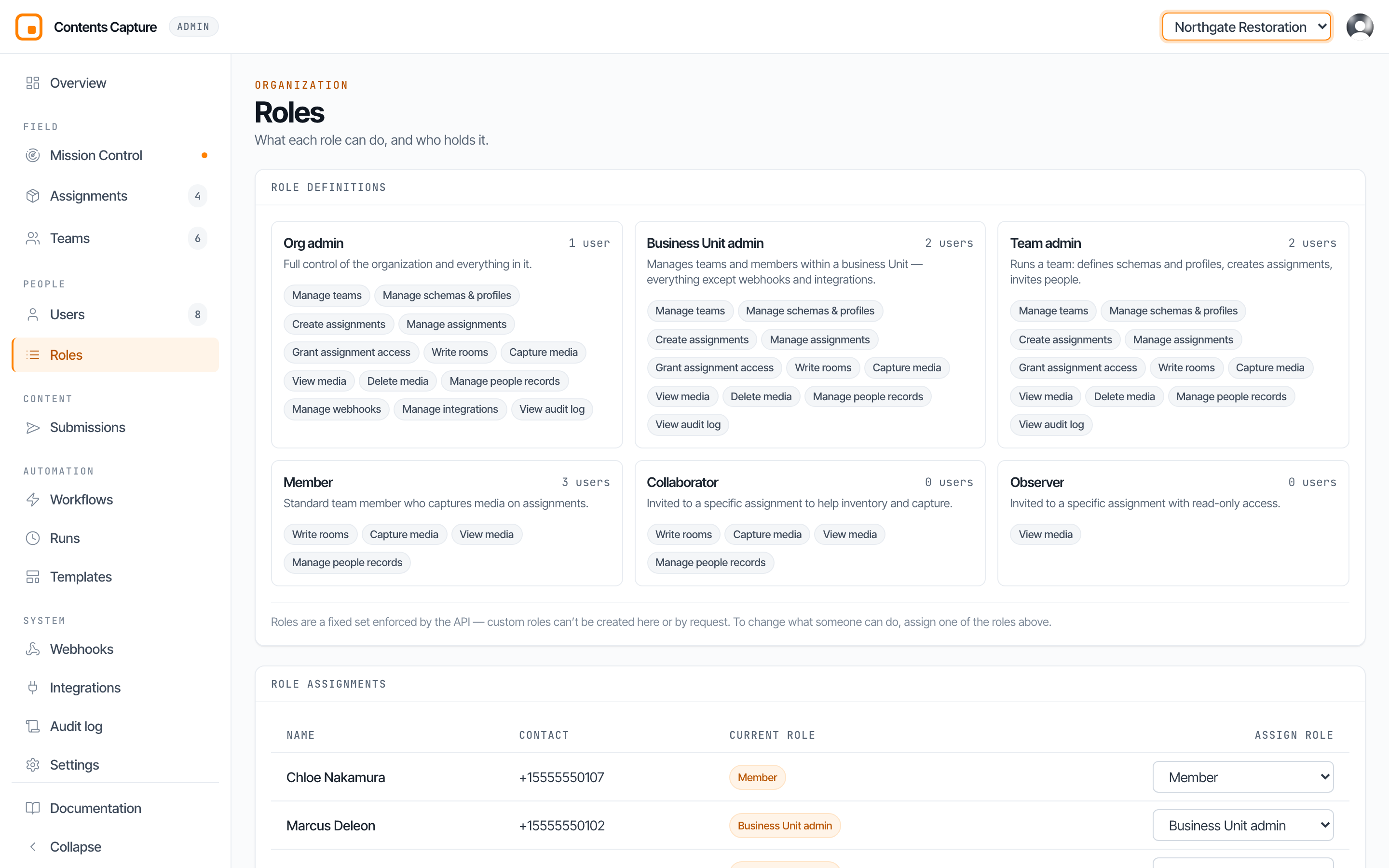
The rule worth memorising: only an org admin can create another org admin.
The console is a courtesy, not the lock
When a button is hidden or greyed out, that is the console being helpful. The real enforcement happens on the server, on every single request. Nobody can get around a permission by fiddling with their browser.
Platform super admins
A very small number of Adjust Square staff are super admins. They can reach every organization on the platform for support purposes, and they can act on your behalf when helping with a problem.
This is not a role you can assign. It is set in the platform configuration, and everything a super admin does is written to the audit log like any other action.
Next: How organizations work.