
Appearance
How business units work
A business unit is a division of your company. It sits between the organization and the teams that do the work.
Organization
   └── Business Unit      ← you are here
          └── Teams
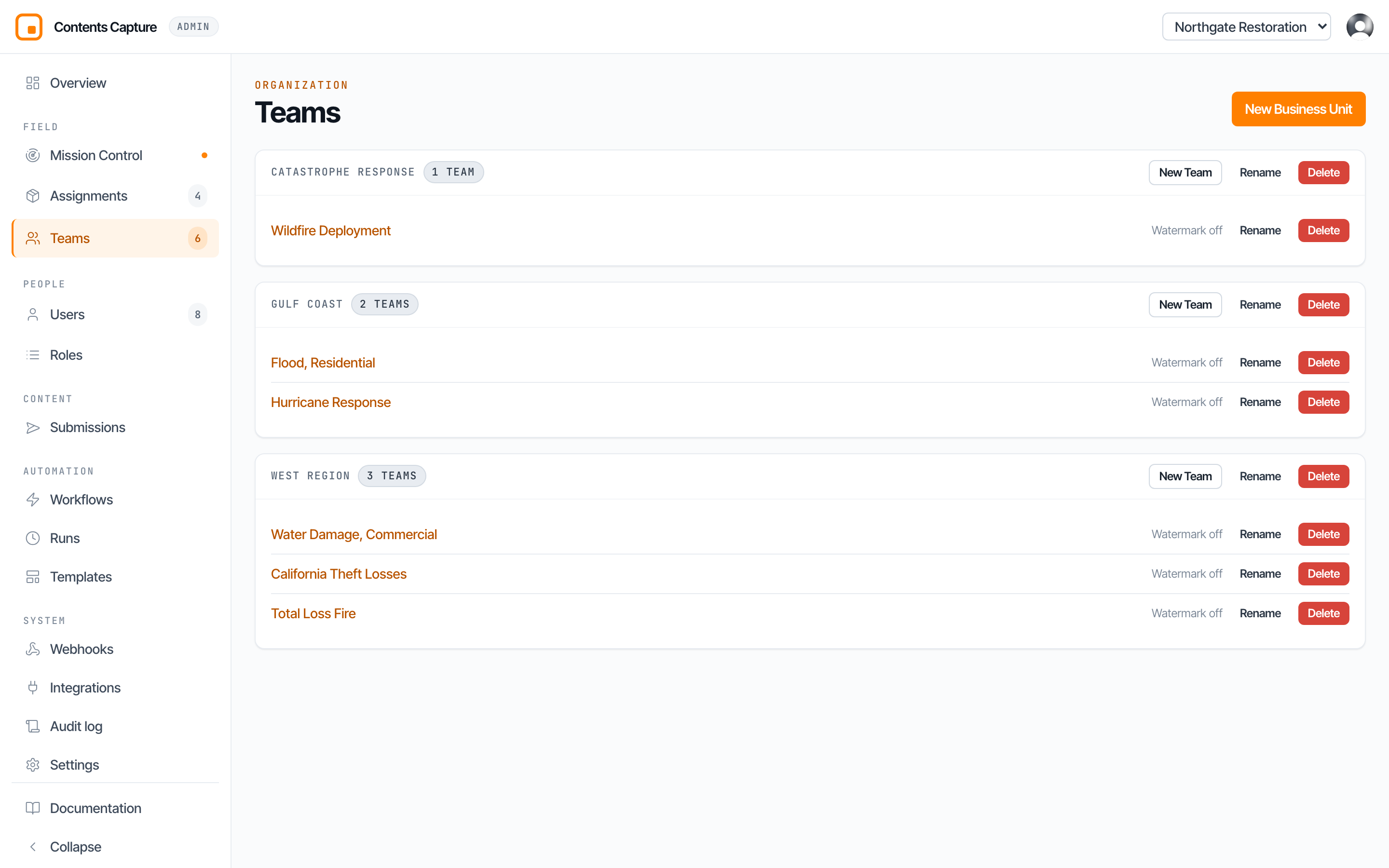
You will find them under Teams in the left menu, where each business unit is shown with the teams inside it.
What a business unit is actually for
A business unit does two jobs, and only two.
It groups teams together. A firm running fifty teams needs some structure or the list becomes unusable.
It draws a line for delegation. This is the real reason they exist. A business unit is the boundary you hand to a deputy. Make somebody a business unit admin and they run everything inside it, without you having to give them the keys to the entire company.
What a business unit does not do
It owns no profiles, no assignments, no capture settings, and no media. Those all belong to teams. A business unit is a container and a boundary, nothing more.
How to name them
The most common mistake is copying your org chart. Reporting lines change every year. Instead, ask a simpler question:
Who is the one person I would trust to run this whole slice without checking in with me?
Draw the business unit around that answer. Most firms land on geography (West Region, Gulf Coast) or line of business (Catastrophe, Daily Claims, Commercial). Both work. What matters is that each one has an obvious owner.
TIP
If your company is small enough that one person oversees everything, you need one business unit, not five. Add more when delegation becomes real, not before.
Creating a business unit
Choose New Business Unit on the Teams page. A five step wizard opens and walks you through the whole setup, including the first team, so you finish with something usable rather than an empty shell.
You need to be an org admin to do this.
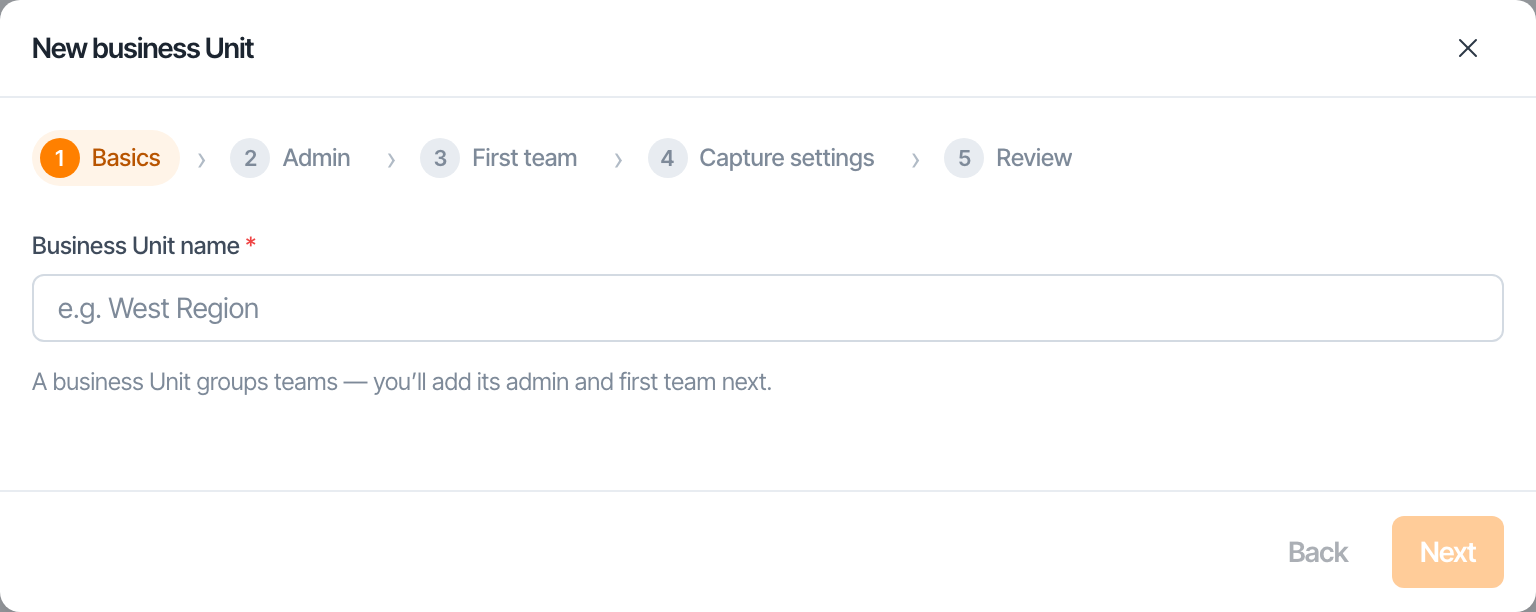
Step 1: Basics
Give it a name. Something a new starter would recognise, such as "West Region" rather than "BU2".
Step 2: Admin
Choose who runs it. You can pick somebody who already has an account, or type the email address of somebody who does not yet.
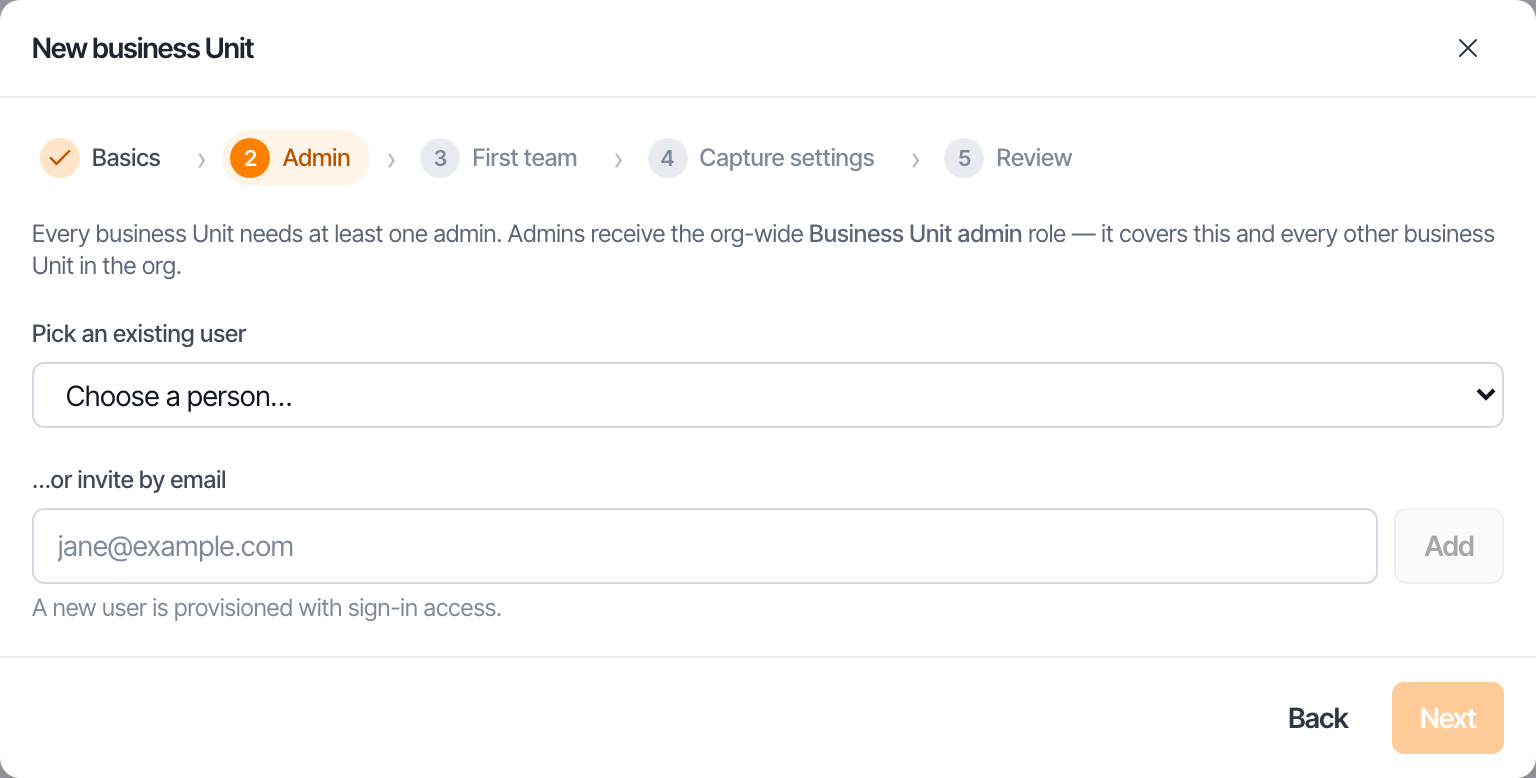
The people you name here become business unit admins. They will be able to create teams, build profiles, create assignments, and bring people in, across every team in this division. See Access levels.
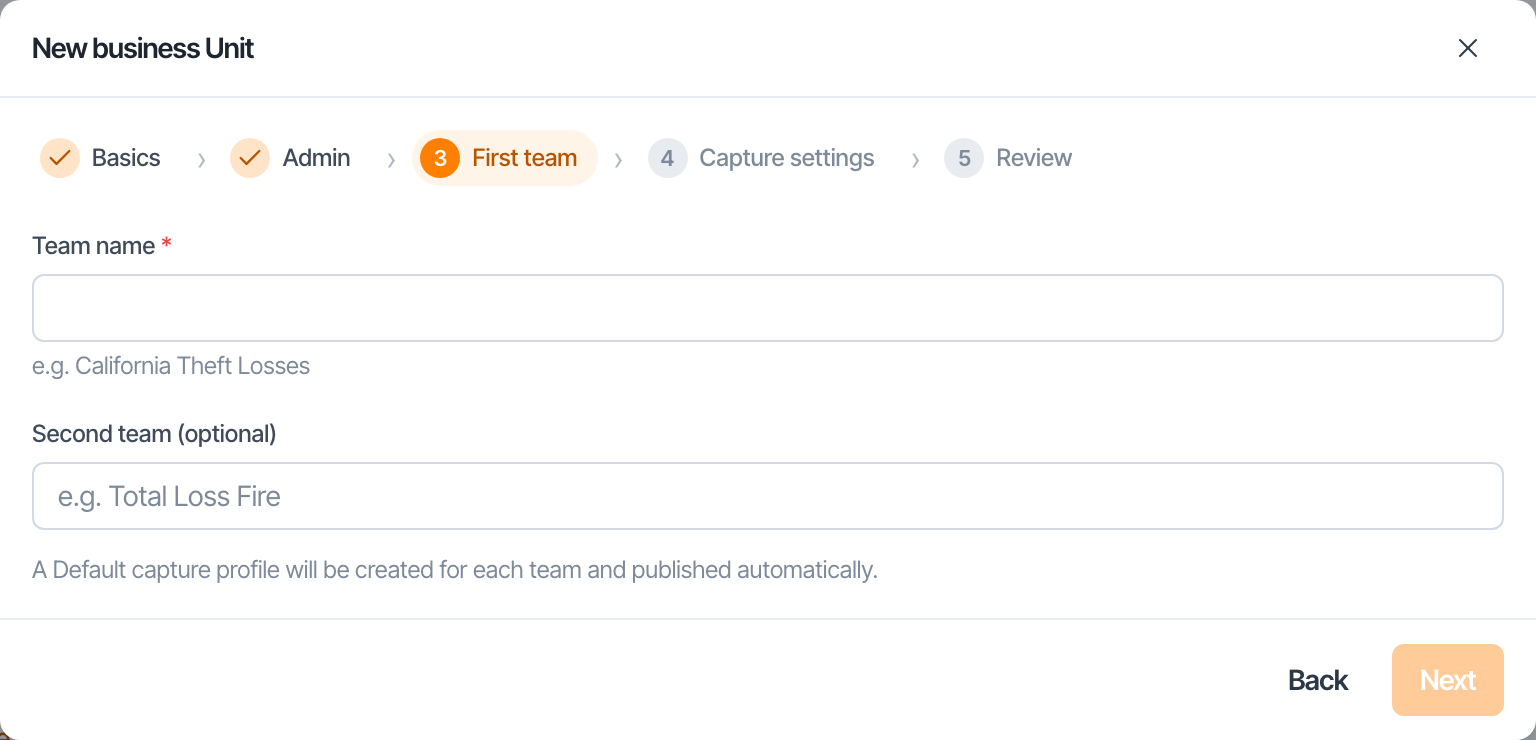
Step 3: First team
Name the first team. A business unit with no teams cannot hold any work, so the wizard insists on at least one to save you a second trip.
Step 4: Capture settings
Choose whether photographs taken by this division carry a timestamp, GPS coordinates, and a watermark.
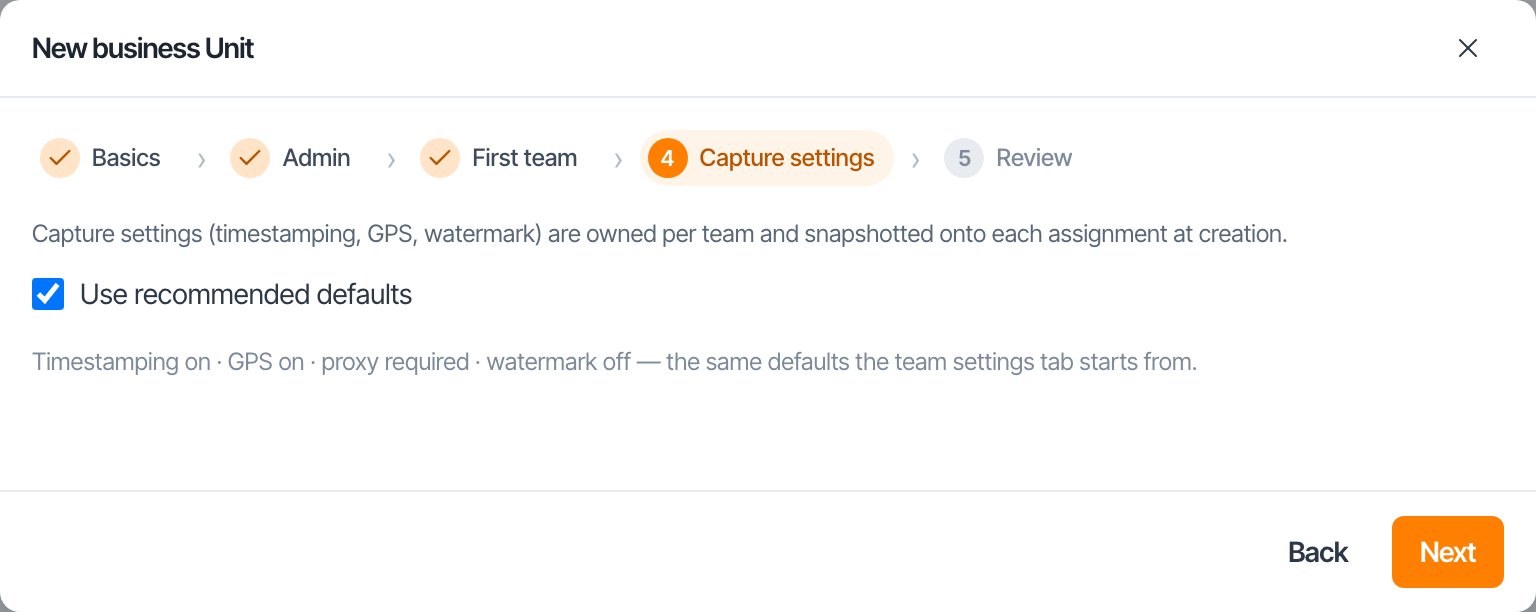
Leave it on the defaults unless you have a reason. You can change your mind per team, or even per assignment, later.
Step 5: Review
The last step lists exactly what is about to be created, then reports each piece as it happens.
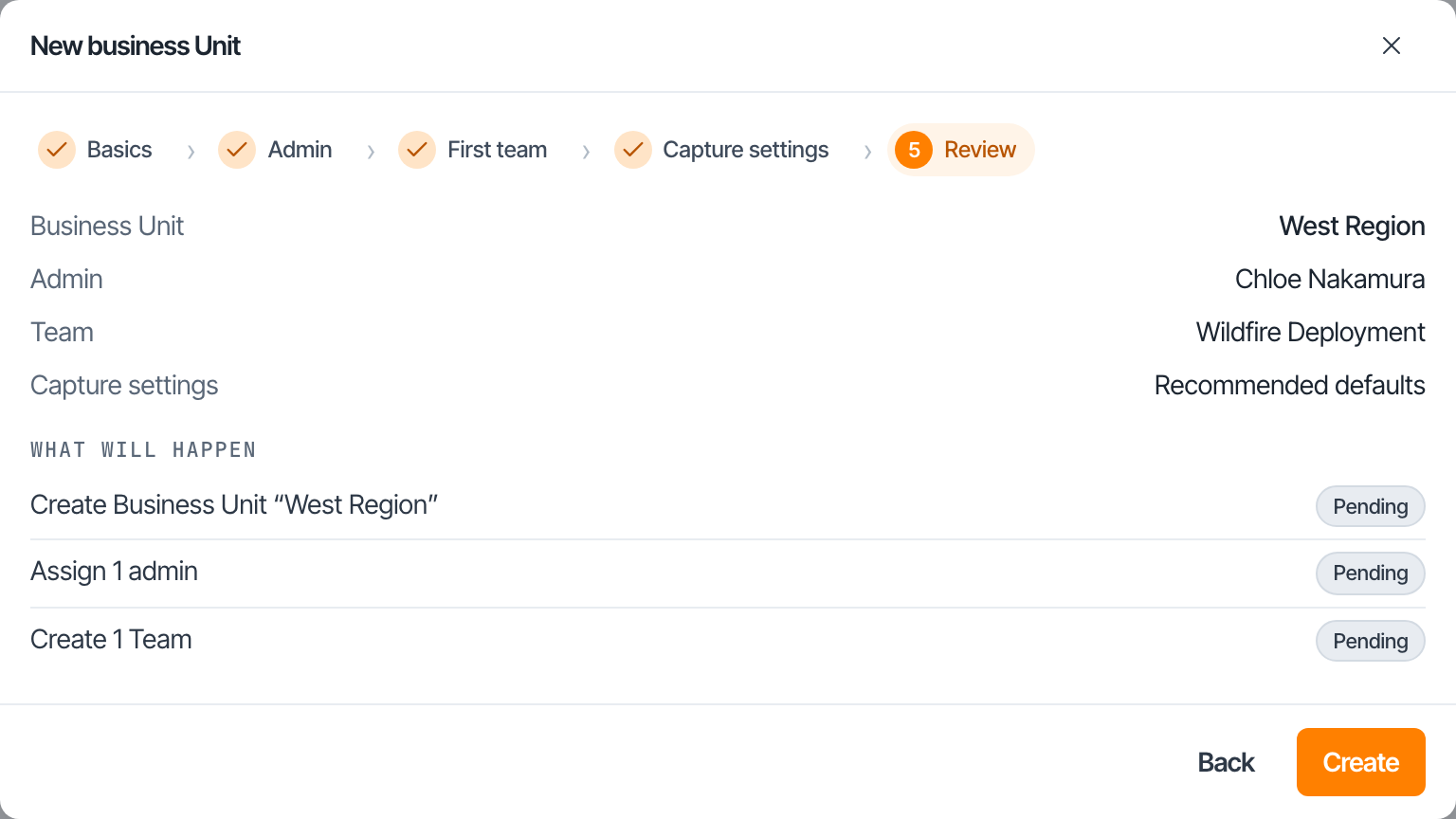
You will see the individual steps tick off:
- Create the business unit
- Assign the admins
- Create the teams
- Apply custom capture settings, if you chose any
If one step fails
The steps that already succeeded are real and stay. Nothing is rolled back. Fix whatever caused the failure and run it again, and the wizard picks up where it stopped instead of duplicating what it already made.
Renaming, and what happens to the word itself
You can rename a business unit at any time. It is a label and nothing depends on it.
You can also rename the entire level. If your firm says "region", set that once under Settings and every screen, menu, and role name follows, so "BU admin" reads "Region admin". See How organizations work.
Deleting a business unit
DANGER
Deleting takes the teams inside it, and their assignments and media, with it. Move anything you want to keep into another business unit first.
Next: How teams work.