
Appearance
How organizations work
The organization is your company's account. It is the outermost box, and everything else in Contents Capture lives inside it.
Organization
   └── Business Units
          └── Teams
                 ├── Profiles
                 └── Assignments
What belongs to the organization
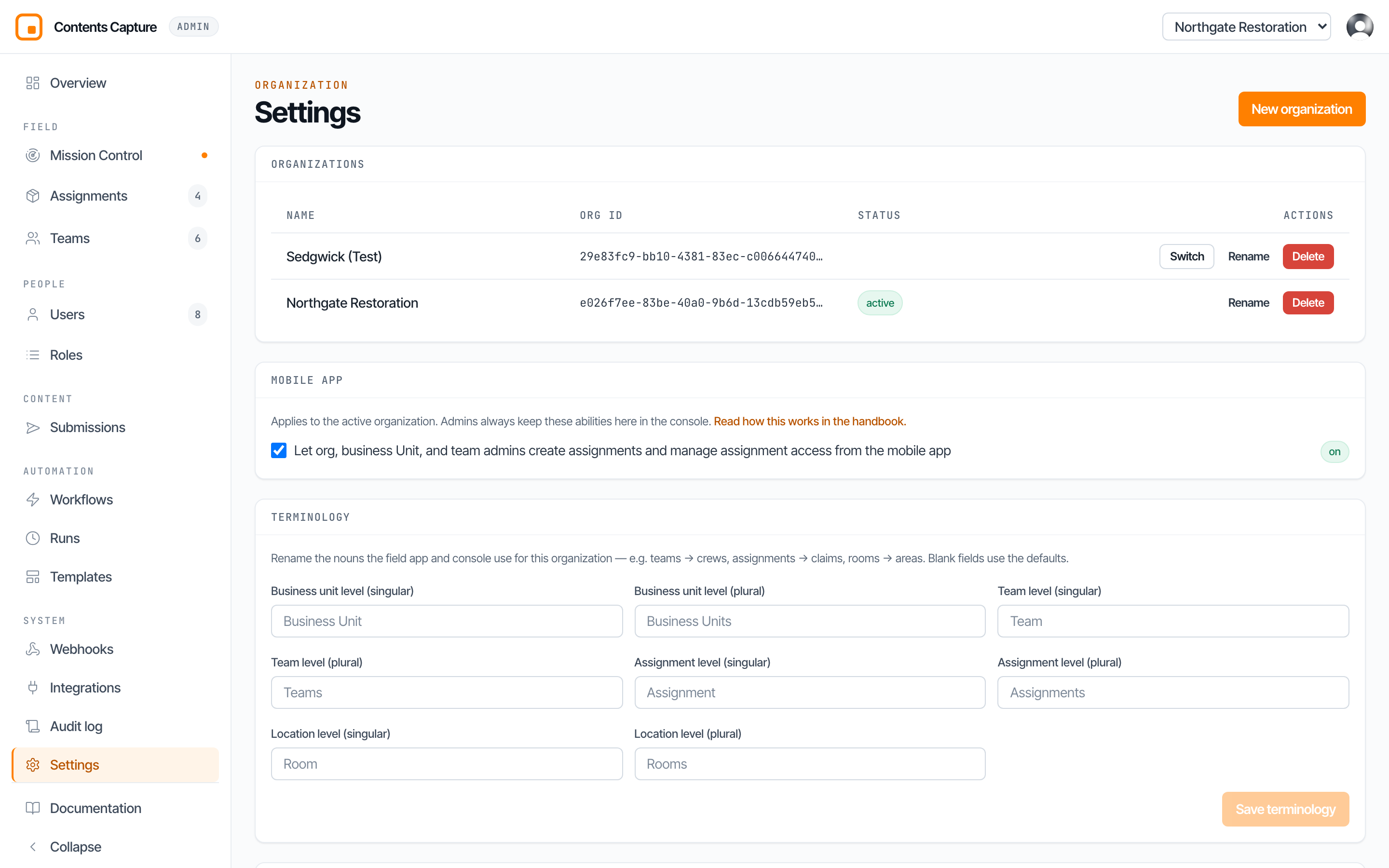
Some things are decided once, for the whole company, rather than team by team. These are the organization's own settings, and you will find them under Settings.
| Owned by the org | Why it sits at this level |
|---|---|
| The people directory | One person, one account, no matter how many teams they work across. |
| Roles | The six access levels are the same company wide. |
| Terminology | Your company's vocabulary should not change between teams. |
| Webhooks | These connect your whole company to your other systems. |
| Integrations | Access tokens for outside software, issued company wide. |
| The audit log | One complete record of everything, in one place. |
| The mobile app policy | One rule about what admins may do from a phone. |
| Assignment visibility | Which job statuses each role sees in the field. |
The wall between organizations
This is the single most important thing to understand.
Organizations cannot see each other. At all. Not partially, not with extra permission, not by searching. If you run two organizations, being an admin of one tells the system nothing about the other. You switch between them and the console reloads as if you had signed in as somebody else.
That is what makes the platform safe for firms handling claims for competing carriers.
Switching organizations
If you belong to more than one, the top bar becomes a dropdown.

Choose one and everything reloads into that organization. Your choice is remembered, so you land back in the same place next time.
WARNING
Check the top bar before you create anything. Making an assignment in the wrong organization is a genuinely annoying mistake to unpick, because you cannot move records across the wall.
Renaming the vocabulary
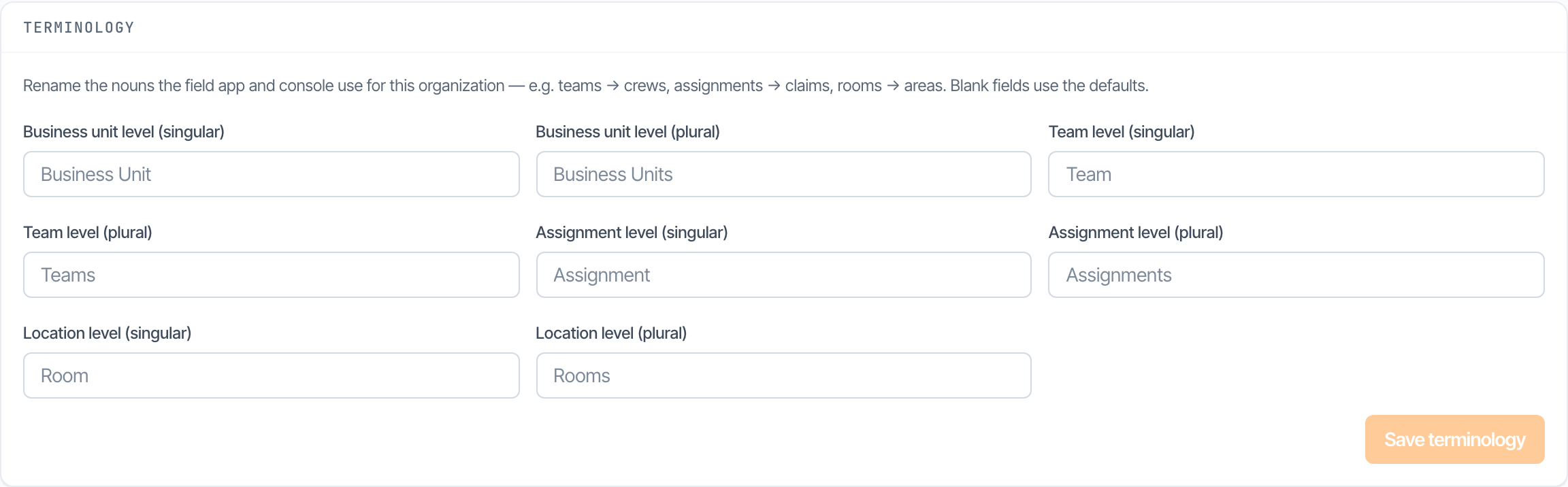
Not every firm says "business unit" and "team". Some say region and crew. Some call an assignment a claim. Some call rooms areas.
You can rename all four levels under Settings, and the new words appear everywhere: in this console, in the mobile app, in the role names, and in the menus.
| Level | Default word | Some firms prefer |
|---|---|---|
| Business unit | Business Unit | Region, Division, Branch |
| Team | Team | Crew, Squad, Unit |
| Assignment | Assignment | Claim, Job, File |
| Room | Room | Area, Space, Zone |
Rename it and a "Team admin" becomes a "Crew admin" throughout, automatically. Leave a box empty and that level keeps its default word.
TIP
Renaming changes the words on screen only. It never changes how anything behaves, and you can change your mind later without touching your data.
The mobile app policy
One switch, one decision: may admins create assignments and manage assignment access from their phone?

Turn it on and a team admin standing at a loss can spin up a new assignment on the spot. Turn it off and that work has to happen here in the console, where it is slower but more deliberate.
This switch never affects the console. Admins keep every ability here regardless.
Assignment visibility
Just below it sits a grid controlling which job statuses each role sees in the mobile app. Team admins, members, collaborators and observers each get a row, and every status a tick box.
Leave everything ticked and nobody is restricted. Untick Draft for members and half finished jobs stop appearing on their phones until you are ready to release them.
Org and business unit admins always see every status, so they are not listed. They are the people managing the work.
Creating and deleting organizations
Creating a new organization is rare. Most companies need exactly one. You would add another only if you genuinely run separate businesses that must never see each other's claims.
Deleting an organization
Deleting removes everything inside it: teams, assignments, photographs, the lot. The console asks you to confirm deliberately. Treat this as permanent.
Next: How business units work.