
Appearance
How to create an assignment
An assignment is one job: one loss, at one property, for one claim. It is what field staff open on their phone and capture into.
Before you start
You need three things in place. The wizard will not let you finish without them.
| You need | Why | Where |
|---|---|---|
| A team | The assignment has to belong to one | How teams work |
| A published profile | It supplies the questions | How profiles are set up |
| At least one team admin on the crew | Somebody has to be able to run the job | Inviting another admin |
You also need permission to create assignments, which means being an org admin, a business unit admin, or a team admin.
Starting the wizard
Open Assignments in the left menu and choose New Assignment.
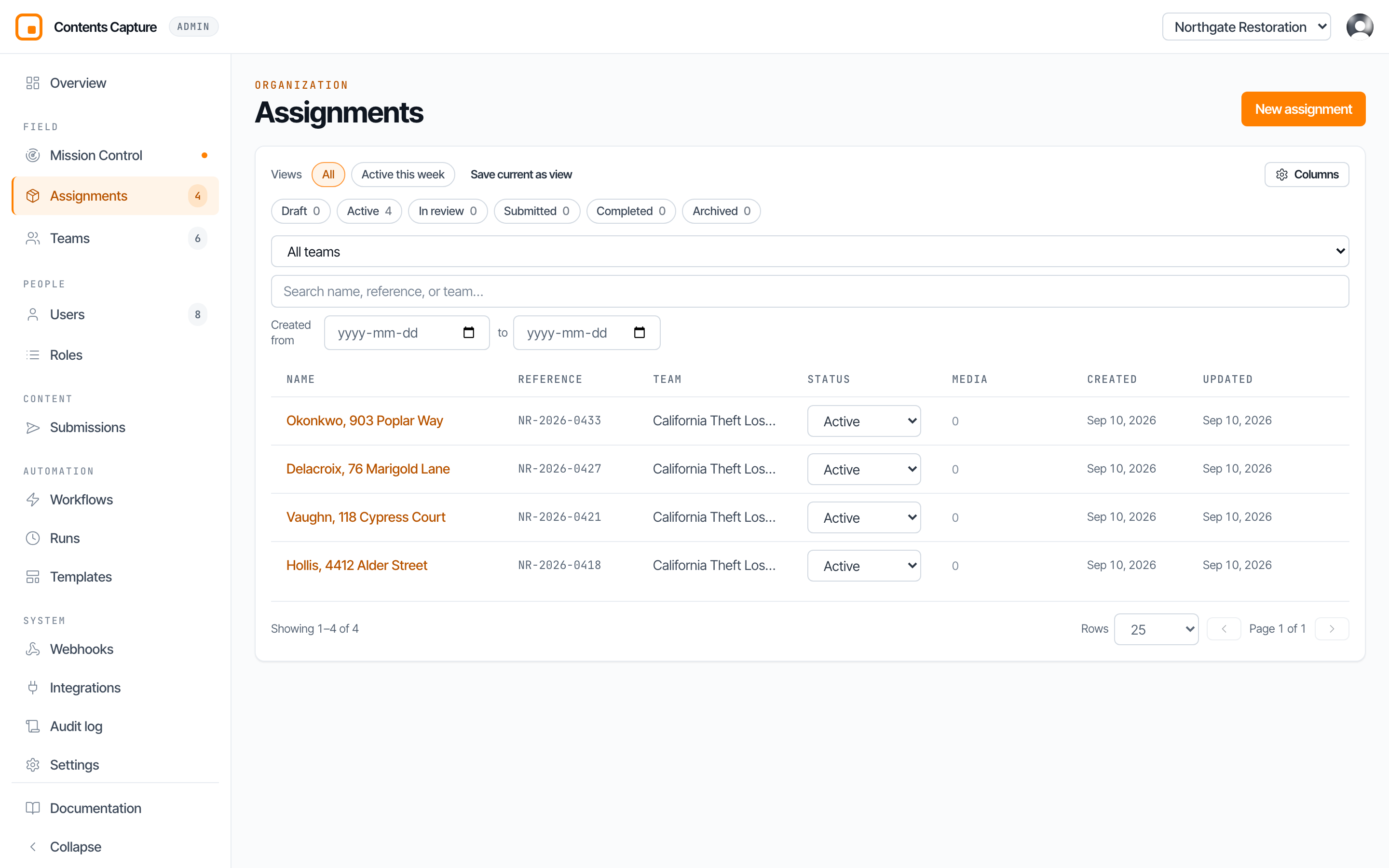
Five steps follow. You can go back at any point before the last one.
Step 1: Method
Choose how you want to create this. There are two paths and they matter.
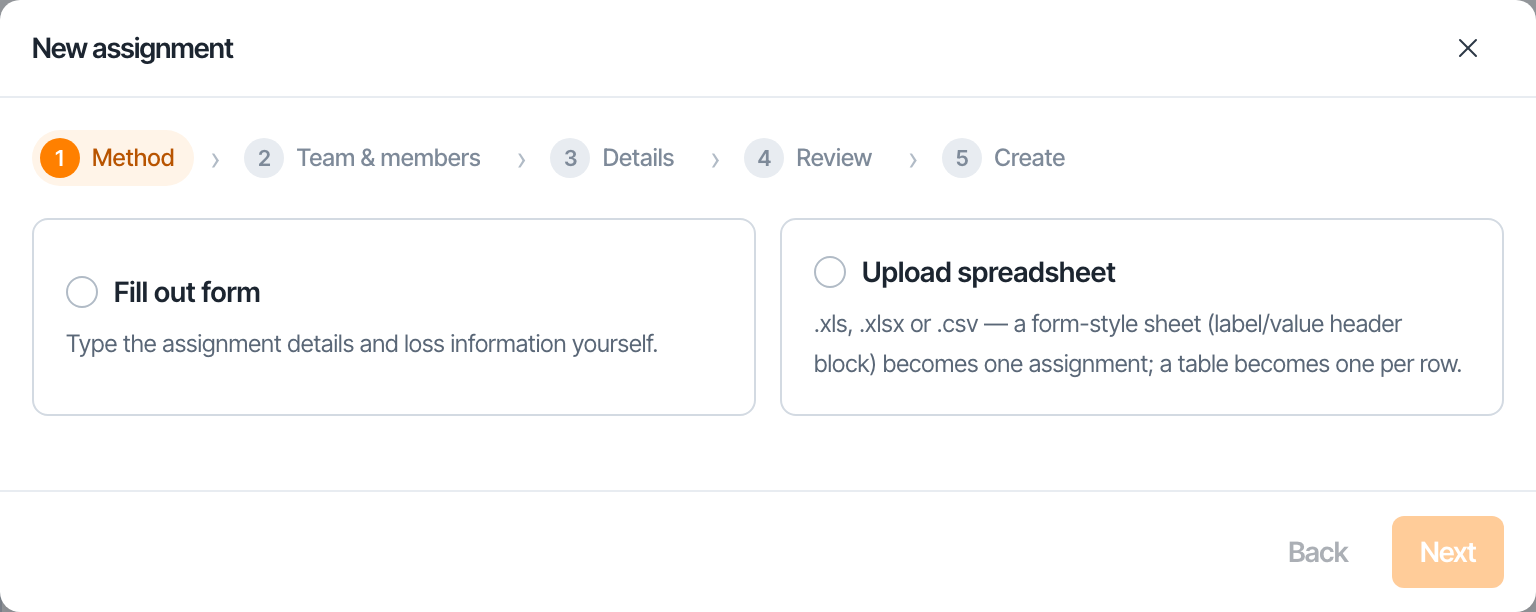
Fill out form. You type the details. Right for a single job, which is most of the time.
Upload spreadsheet. You give it a file and it reads the jobs out of it. Right when a carrier has sent you a list.
TIP
The spreadsheet path is the one people forget exists. If a carrier sends you forty losses in a workbook on a Monday morning, you do not have to type forty assignments.
Step 2: Team and members
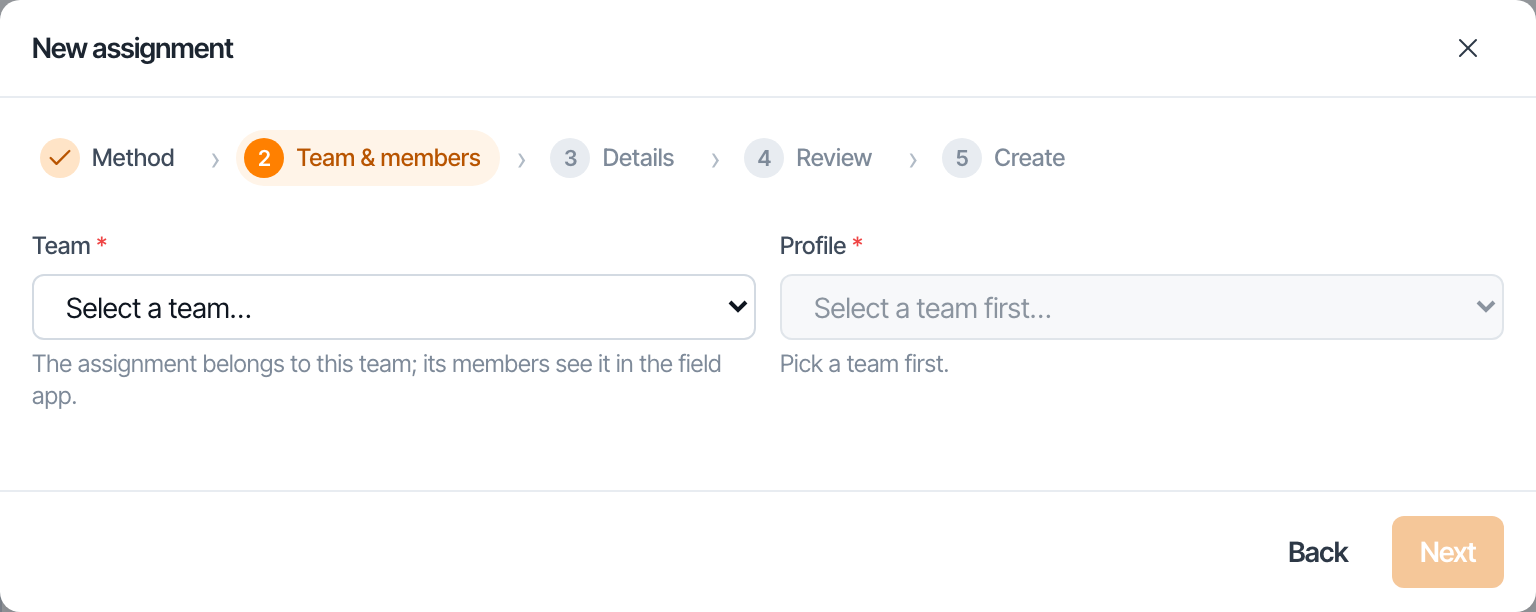
Choose which team owns the job, and which profile it uses.
Below that, every member of that team is listed, and all of them are ticked by default. Everybody left ticked gets access to this assignment when it is created.
Untick anybody who does not need it. There is no harm in a large crew, but a tighter list makes the field app simpler for everyone on it.
At least one team admin
One of the ticked people must be a team admin. Somebody on the job needs to be able to manage it, invite a guest, or fix a mistake without ringing you.
You can also add people who are not on the team yet, either by picking an existing account or typing an email address. Somebody invited by email joins the crew, but cannot be granted access to the assignment until they have actually accepted and become a user.
Step 3: Details
What you see here depends on the path you chose in step 1.
If you are filling out a form
Give the assignment a name and a reference, then answer whatever questions the profile asks at the assignment level, such as the loss questions.
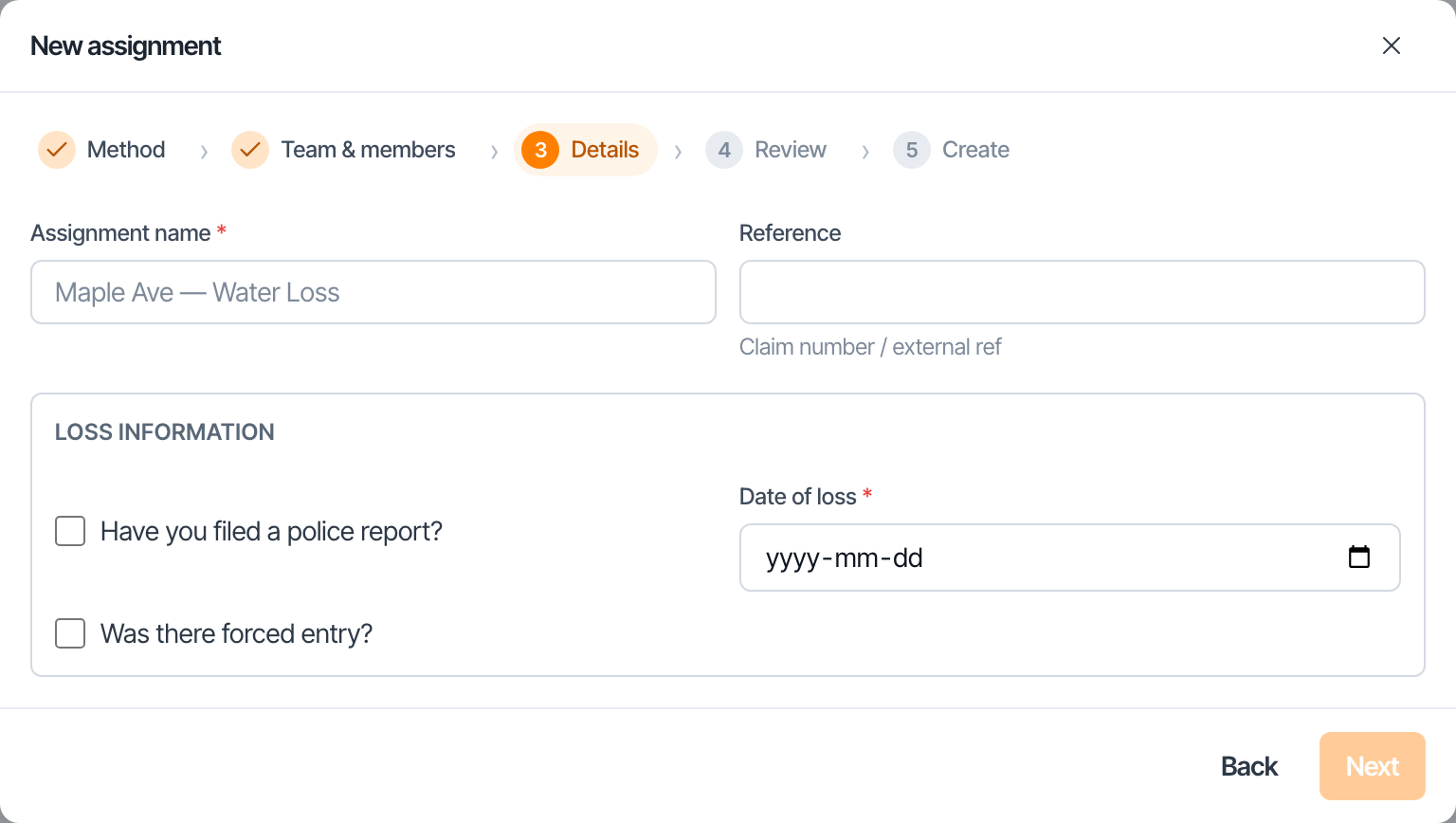
| Field | What to put |
|---|---|
| Name | Something a person recognises, such as the insured's name and the address. |
| Reference | Your claim number, or the carrier's. This is what you will search by later. |
TIP
Agree a naming convention across your firm before you have three hundred of these. "Smith, 14 Oak Ave" beats "Job 3" every time.
If you are uploading a spreadsheet
Pick the file, then tell it which sheet to read and which row holds your column headings.
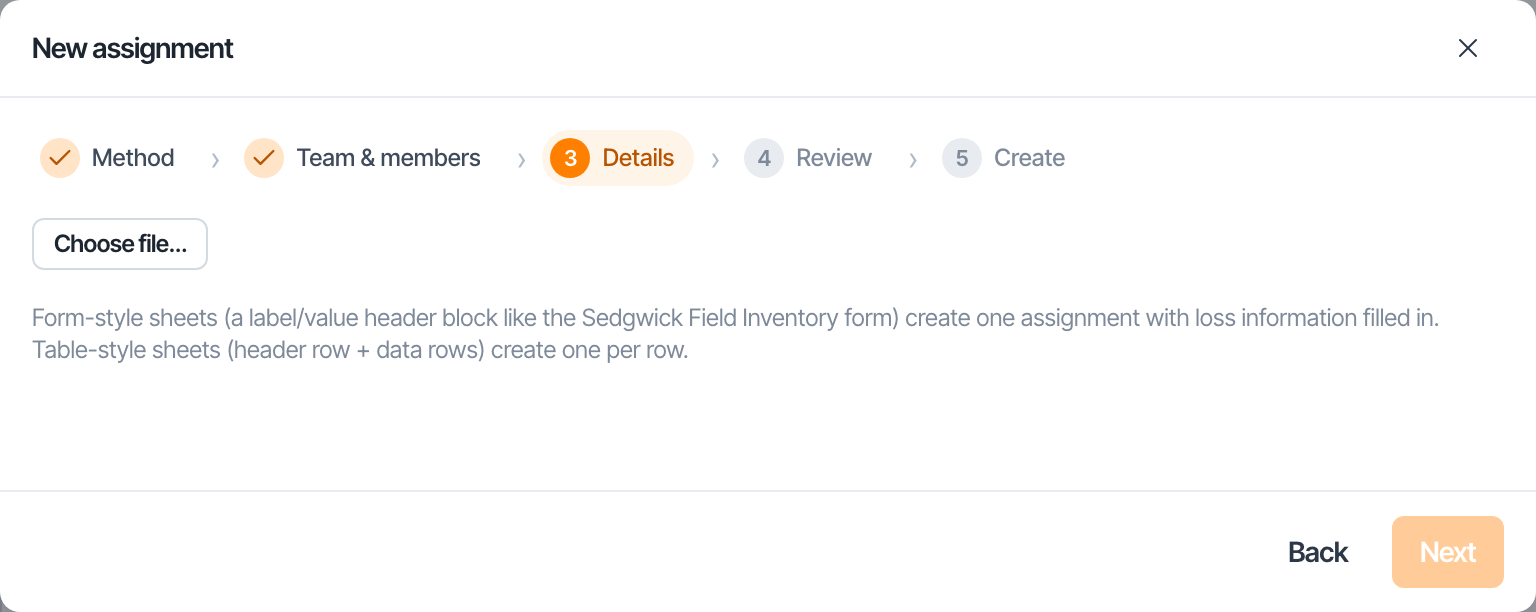
It then works out the shape of your file on its own:
- A table, with one loss per row, becomes one assignment per row.
- A form, with labels down the side and values beside them, becomes one assignment.
It also matches your columns to the right fields automatically and shows you what it decided. Check that mapping. It is usually right, and when it is wrong it is obvious, and you can correct it before anything is created.
If your sheet lists rooms, those can be created for you too.
Step 4: Review
Everything that is about to be created, laid out for you, and every value is still editable here.
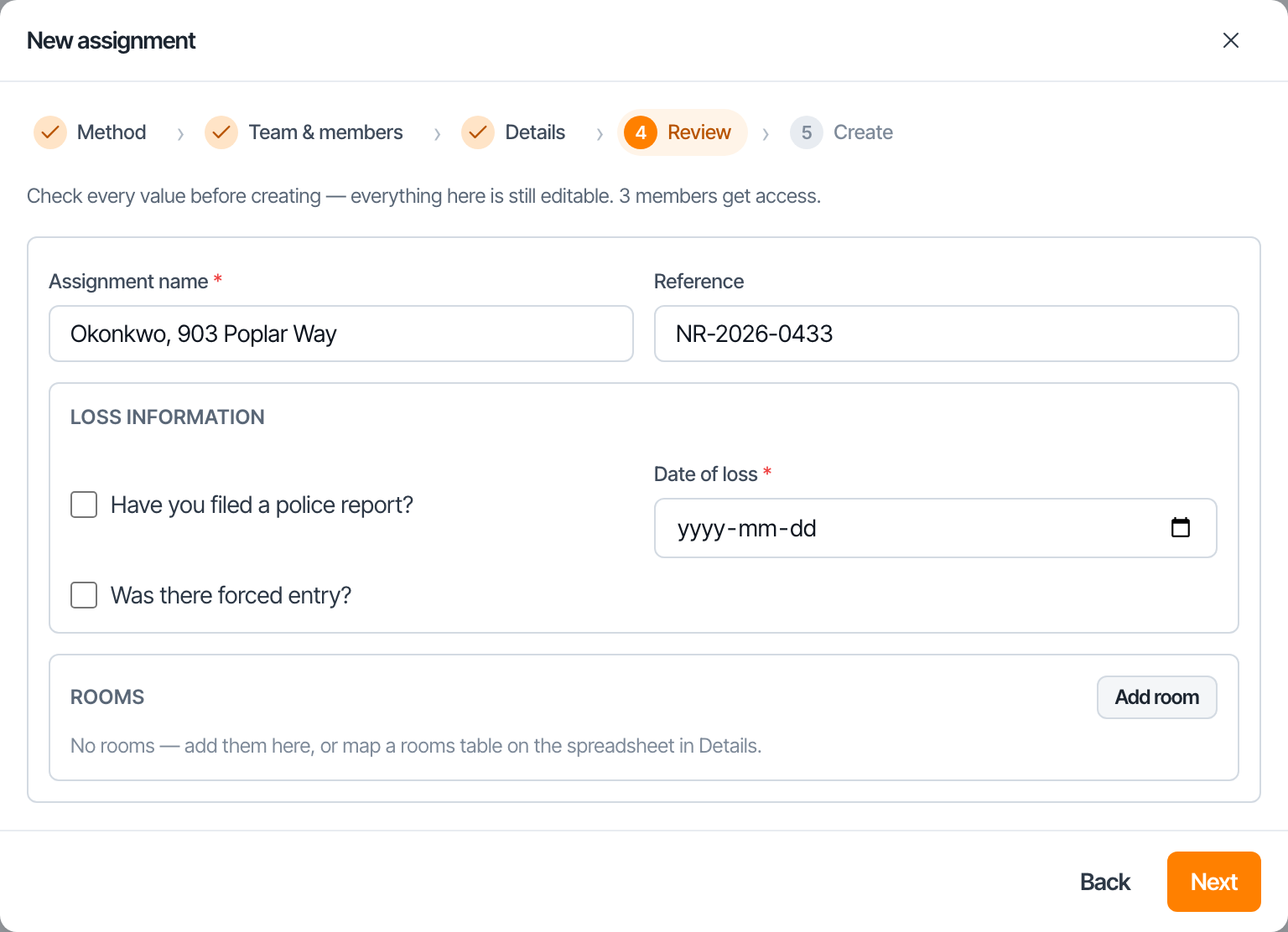
This is the last moment before records become real. On the spreadsheet path with forty rows, this is where a bad column mapping becomes visible. It is worth the minute it takes.
Step 5: Create
Now it runs, and shows you each part as it completes.
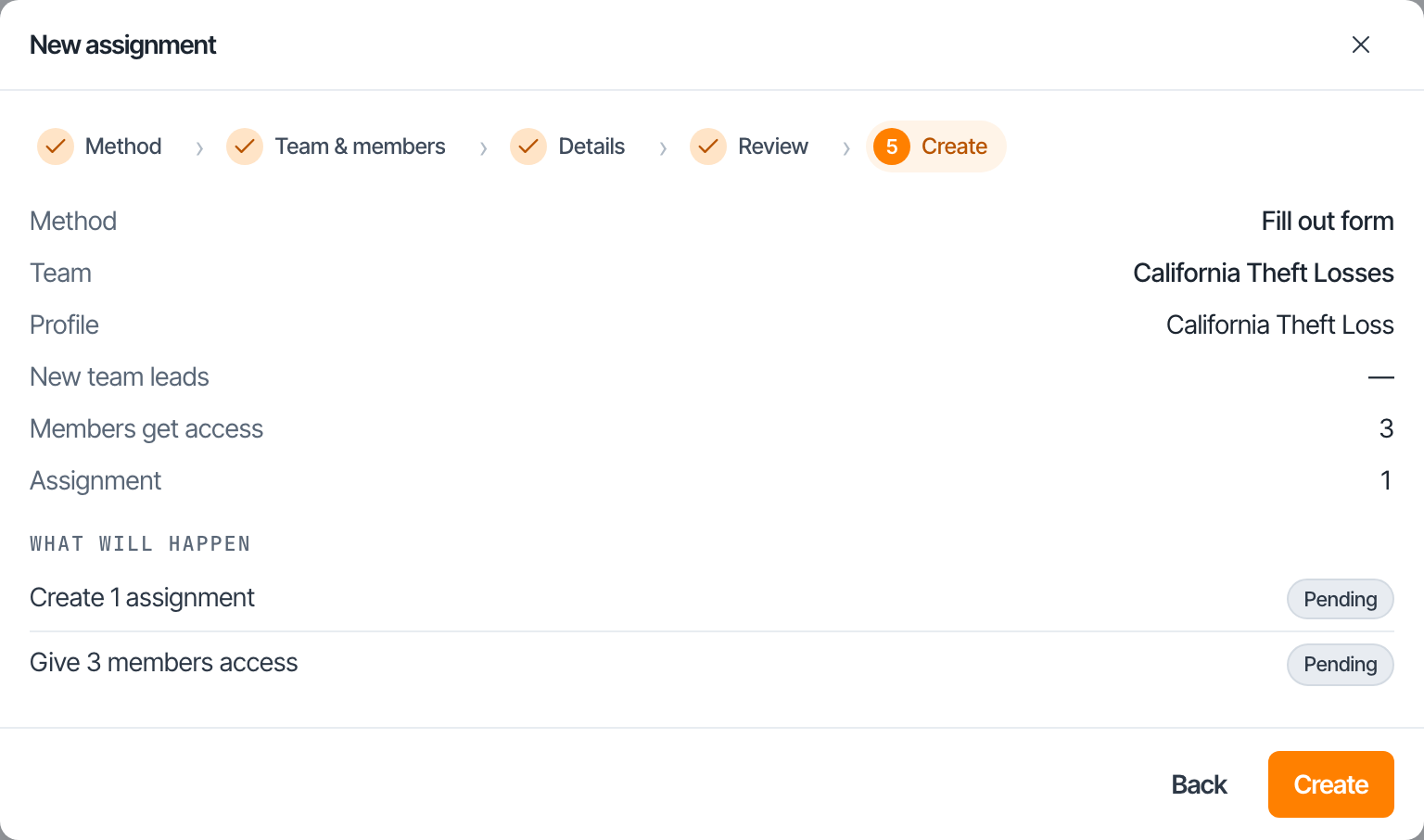
- Seat any new team leads
- Create the assignments
- Grant the crew access
- Save the answers you filled in
If something fails partway
What already succeeded is real and stays. Nothing is undone. Fix the cause and run it again, and it resumes from where it stopped rather than creating duplicates.
This is deliberate. Half of forty assignments existing is recoverable. Silently throwing away thirty nine good ones would not be.
What happens next
The assignment appears in the list and, within moments, on the phones of everybody you gave access to. They can start capturing straight away, with or without signal.

The life of an assignment
| Status | Meaning |
|---|---|
| Draft | Being prepared. Not yet live work. |
| Active | Out with the field. The normal state. |
| In review | Capture is done and somebody is checking it. |
| Submitted | Every photograph has been handed over. Set automatically. |
| Completed | Finished. |
| Archived | Put away, retained, out of the everyday list. |
Submitted can go backwards, and that is correct
An assignment marks itself submitted once all of its media has been handed over. If somebody then captures one more photograph, it quietly returns to active. The status describes reality rather than somebody's intention, so it cannot claim a job is finished when new evidence is still arriving.
Common problems
The profile dropdown is empty. The team has no published profile. A draft does not count. See How profiles are set up.
It will not let me past step 2. No team admin is ticked in the crew list.
Somebody cannot see the assignment on their phone. Check they were ticked in step 2. You can grant access afterwards from the assignment's Access tab.
The spreadsheet mapped the wrong columns. Go back to step 3 and correct it. Nothing is created until step 5.
Next: Assignment access for bringing guests onto one job.